
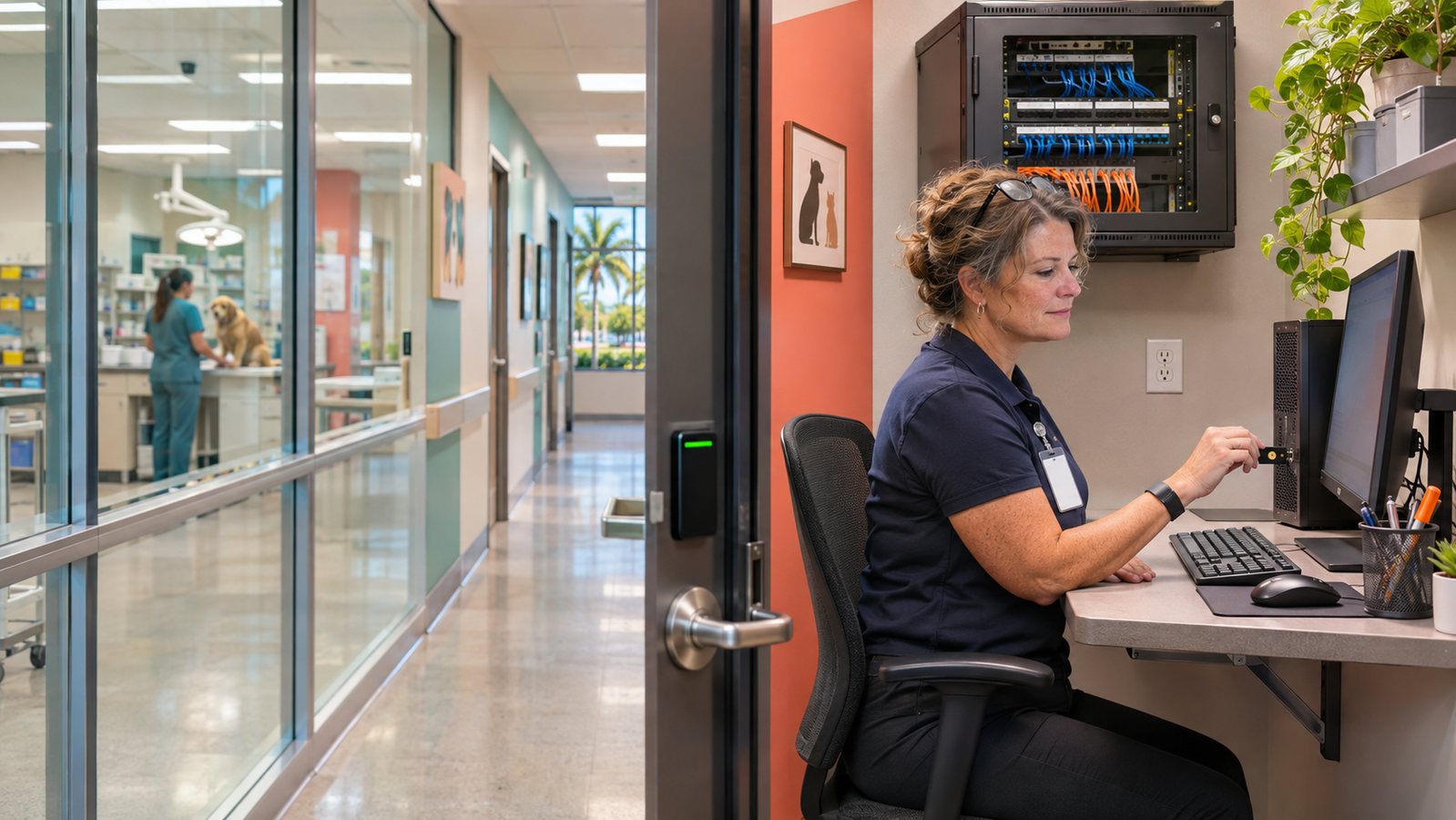
<p>A Microsoft 365 administrator may use multifactor authentication, a strong password, and a separate admin account—and still expose the tenant by signing in from a compromised everyday computer. The reason is simple: MFA helps verify the person at sign-in, but it does not clean malware from the device or prevent a malicious process from taking over an authenticated browser session.</p>
<p>Microsoft’s privileged-access guidance treats the device as part of the security boundary. For high-impact administrative work, Microsoft recommends a privileged access workstation (PAW) or secure admin workstation (SAW): a hardened, managed device reserved for privileged tasks and isolated from ordinary email, web browsing, document work, and unapproved software.</p>
<h2>Why an ordinary work computer is the wrong control console</h2>
<p>Everyday computers encounter risky content by design. Employees open email attachments, visit websites, join video meetings, install productivity software, and handle files from customers and vendors. Even a well-managed endpoint has a larger attack surface than a device used only for administration.</p>
<p>If an attacker controls that endpoint, the attacker may steal authentication tokens after MFA, inject code into an administrative browser session, capture credentials from memory, or operate through the legitimate user’s active session. Microsoft explicitly warns that identity protections and approval workflows cannot compensate for a compromised workstation.</p>
<p>The business impact can be tenant-wide. A privileged Microsoft 365 or Entra role may reset accounts, change Conditional Access, approve applications, alter mail flow, create persistence, access sensitive data, or weaken logging. This is why the safest administrative path combines a separate identity, a trusted device, strong authentication, least privilege, and monitoring.</p>
<h2>Which tasks belong on a secure admin workstation?</h2>
<p>Use the protected environment for actions that could materially affect the organization, including:</p>
<ul>
<li>Managing Global Administrator, Privileged Role Administrator, Conditional Access Administrator, Security Administrator, Exchange Administrator, and similar roles.</li>
<li>Changing authentication methods, MFA policies, Conditional Access, federation, synchronization, or emergency-access settings.</li>
<li>Creating application registrations, granting tenant-wide consent, or managing high-privilege service principals.</li>
<li>Changing mail-flow rules, security policies, audit settings, retention, eDiscovery, or external sharing controls.</li>
<li>Managing endpoint, backup, domain, DNS, firewall, or remote-management platforms that can influence many systems.</li>
</ul>
<p>Routine productivity work should remain on the normal computer under the normal user identity. The secure workstation is a control console, not a more expensive everyday laptop.</p>
<h2>A practical plan for a Central Florida small business</h2>
<h3>1. Separate the administrator identity</h3>
<p>Give each authorized administrator a named, cloud-native administrative account that is distinct from the account used for email and daily work. Do not assign Microsoft 365 administrative roles to the everyday mailbox account. Avoid shared administrator identities because they weaken accountability and complicate incident response.</p>
<p>Assign the least-privileged role required for the task. Where licensing and operations support it, use Privileged Identity Management for time-limited role activation instead of permanent standing privilege. Maintain separately controlled emergency-access accounts and test them under an approved procedure.</p>
<h3>2. Require phishing-resistant authentication</h3>
<p>Microsoft recommends phishing-resistant MFA for administrator roles. Suitable options can include passkeys or FIDO2 security keys, Windows Hello for Business, or certificate-based authentication, depending on the environment and current Microsoft support. Register the method and test recovery before enforcing a policy so the organization does not lock itself out.</p>
<p>SMS and push approvals may be better than a password alone, but high-impact administrator accounts deserve stronger protection against phishing and approval fatigue.</p>
<h3>3. Build a dedicated, managed device</h3>
<p>The workstation should be enrolled and managed from first boot, fully patched, encrypted, protected by endpoint detection, and configured with Secure Boot and hardware-backed protections where available. The administrator should not be a local administrator on the device. Limit installed applications and allow only the management tools required for the role.</p>
<p>For a very small organization, this may be a dedicated physical device kept in a controlled location. A properly designed virtual or cloud workstation may also support isolation, but it must not merely be a remote desktop launched from an untrusted computer with unrestricted redirection. The access path, host device, session controls, and recovery process all matter.</p>
<h3>4. Remove everyday activity</h3>
<p>Do not configure the admin workstation for normal email, social media, general web browsing, document editing, customer portals, or personal use. Restrict internet destinations to approved Microsoft administrative endpoints and other necessary management services. Block removable media unless there is a documented operational need.</p>
<p>When an administrator needs instructions or a ticket, keep the reference on the standard workstation and manually transfer only the minimum approved information. Avoid copying unknown scripts or commands directly into a privileged session without review.</p>
<h3>5. Enforce the trusted-device requirement</h3>
<p>A dedicated workstation helps only if administrators can no longer sign in from ordinary devices. Use Conditional Access and device-compliance controls, where supported, to restrict privileged administrative access to approved, compliant devices and require the intended authentication strength. Stage the policy carefully, validate exclusions for emergency access, use report-only or test groups where appropriate, and confirm rollback steps before broad enforcement.</p>
<h3>6. Monitor privileged behavior</h3>
<p>Alert on administrative sign-ins from unexpected devices or locations, new role assignments, changes to Conditional Access, added authentication methods, application-consent changes, new credentials, altered logging, and use of emergency accounts. Review privileged accounts regularly and remove obsolete roles promptly.</p>
<p>Logs should be available outside the system being administered when practical. An attacker with tenant control may try to erase or reduce evidence.</p>
<h2>A phased rollout that avoids lockout</h2>
<ol>
<li><strong>Inventory:</strong> List administrator accounts, roles, devices, emergency accounts, and third-party support access.</li>
<li><strong>Pilot:</strong> Build one secure workstation and one dedicated admin identity for a limited role.</li>
<li><strong>Authenticate:</strong> Register and test phishing-resistant MFA plus an approved recovery route.</li>
<li><strong>Observe:</strong> Confirm the needed portals and tools work; document dependencies and support procedures.</li>
<li><strong>Enforce:</strong> Restrict the pilot role to the compliant device, with tested emergency exclusions.</li>
<li><strong>Expand:</strong> Add higher-impact roles and authorized administrators in controlled stages.</li>
<li><strong>Verify:</strong> Attempt a blocked administrative sign-in from an ordinary PC and confirm the alert and response path.</li>
</ol>
<h2>Common shortcuts that defeat the design</h2>
<ul>
<li>Using the secure device for email “just this once.”</li>
<li>Giving the admin account a mailbox or Teams workload for convenience.</li>
<li>Allowing administrators to remain local administrators on the PAW.</li>
<li>Installing remote-support, browser extensions, or utilities without review.</li>
<li>Leaving administrator roles permanently active when temporary elevation is practical.</li>
<li>Relying on MFA while allowing privileged sign-ins from any unmanaged device.</li>
<li>Forgetting vendor and MSP accounts that can make the same high-impact changes.</li>
</ul>
<h2>The management decision</h2>
<p>A secure administrative workstation is not necessary for every employee or every task. It is a focused control for the small number of identities capable of changing the organization’s security boundary. For a Central Florida business, the cost of one dedicated device and a disciplined workflow should be weighed against the impact of tenant-wide email compromise, ransomware, fraudulent payment instructions, lost client data, or a prolonged recovery.</p>
<p>GebhardCS can help inventory privileged access, separate administrator identities, design a practical secure-workstation baseline, stage Conditional Access safely, and document the recovery and monitoring process. The goal is not complexity for its own sake. It is to ensure that the keys to the Microsoft 365 tenant are used only from a trustworthy control console.</p>